Jawad Zafar Estimates Pro
Price a job, send a branded proposal, get it signed online and collect the deposit by card, all from your own WordPress site.
Thank you for buying Jawad Zafar Estimates Pro. This guide takes you from installation to your first signed and paid proposal. If you get stuck, see the FAQ or contact support.
Requirements
| WordPress | 6.0 or newer |
|---|---|
| PHP | 7.4 or newer, with the sodium extension (standard since PHP 7.2) for encrypting saved passwords and keys |
| Permalinks | Any setting. Pretty permalinks give nicer client links. |
| Theme | Any. The client proposal page has its own design and doesn't depend on your theme. |
| Card payments (optional) | A Stripe account, and an SSL certificate (https) on your site |
Installation
- In your CodeCanyon download, find
jawad-zafar-estimates-pro.zip. Don't upload the whole download, only this zip. - In WordPress go to Plugins → Add New → Upload Plugin, choose the zip and click Install Now.
- Click Activate. The setup wizard opens (see Setup wizard).
Upgrading from the free version
Pro uses the same data as the free version, Jawad Zafar Estimates, on WordPress.org, so your estimates, clients, cost library and settings all carry over.
- Install and activate Pro as above. You don't need to deactivate the free version first.
- Pro switches the free version off automatically and shows: "Jawad Zafar Estimates Pro is active. The free version was switched off…"
- Check that your estimates are there, then delete the free version from the Plugins screen. Your data is kept, even if "Delete all data" is ticked in Settings, because Pro is still installed.
Setup wizard
The wizard appears the first time you activate the plugin. Choose your country and it fills in:
- currency and currency symbol;
- tax name and rate (for example VAT 20%, GST 10%, sales tax 0%), and whether your prices include tax;
- metric or imperial units;
- sample cost items priced roughly in your currency (optional).
Countries with presets: United Kingdom, Ireland, United States, Canada, Australia, New Zealand, The Bahamas, Cayman Islands, Jamaica, Trinidad and Tobago, Barbados, United Arab Emirates, Saudi Arabia, South Africa, India and Pakistan. For anywhere else choose Other country and fill in the fields. Everything can be changed later in Estimates → Settings.
Settings
Go to Estimates → Settings. Settings are split into five tabs.
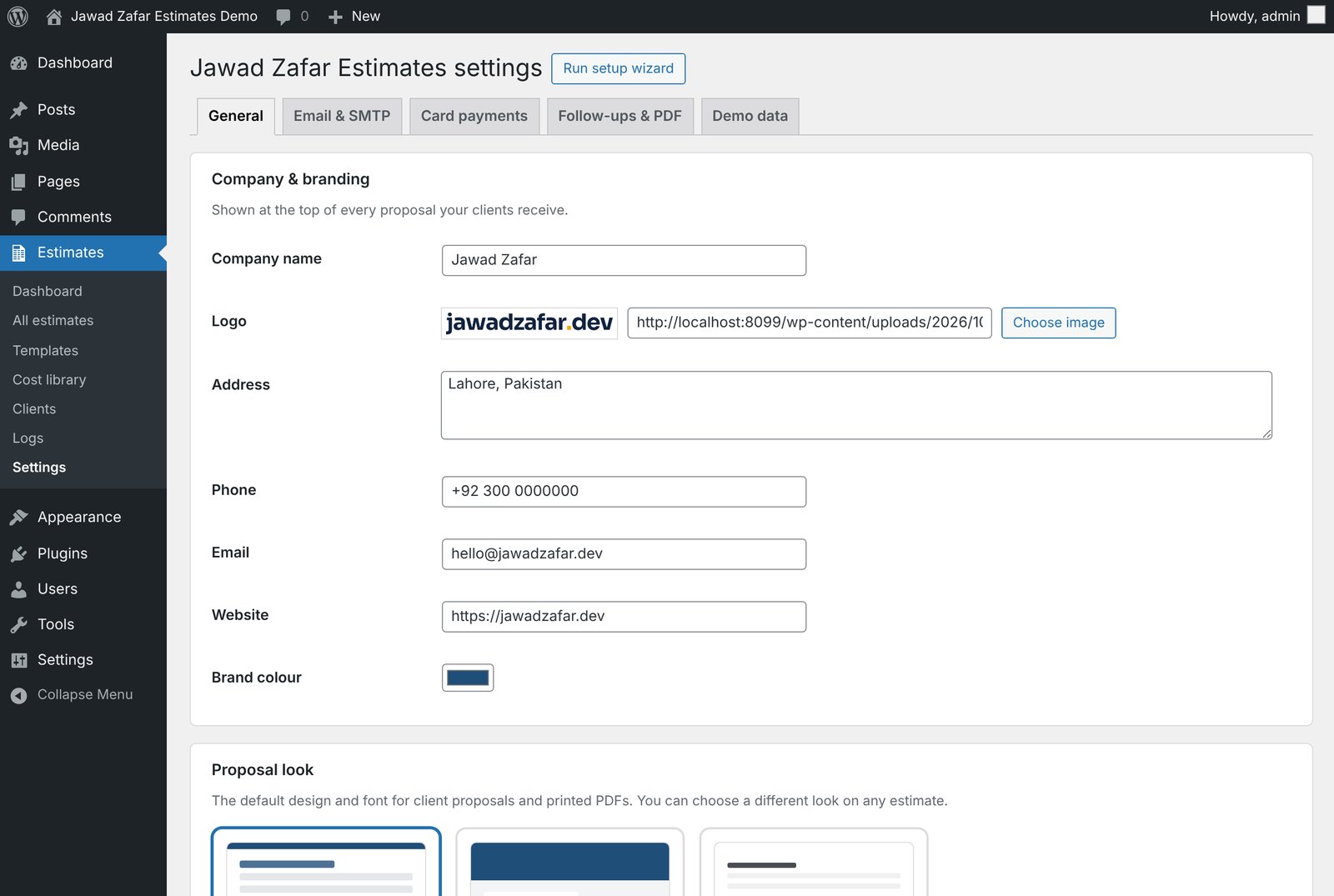
General
- Company: name, logo, address, phone, email, website and brand colour. These appear on every proposal and in emails.
- Proposal look: the default design and font. See Proposal designs and fonts.
- Currency and number format.
- Estimate defaults: number prefix (EST-), next number, tax, default markup, overhead, contingency, import duty, freight, fees, deposit, payment schedule, how long proposals stay valid, scope and terms.
- Offline payment methods: bank transfer, cheque and cash, with the instructions shown to clients.
- Notifications: where to send alerts when a client opens, signs, declines, asks for changes or pays.
- Proposal email: the subject and message sent to clients. Placeholders:
{client}{company}{number}{title}{total}{link}{valid_until}. - Data: how long logs are kept, and whether to delete all data when the plugin is deleted.
Email & SMTP
See Email and SMTP.
Card payments
See Card payments with Stripe.
Follow-ups & PDF
See Automatic follow-ups and PDF copies.
Demo data
See Demo data.
Proposal designs and fonts
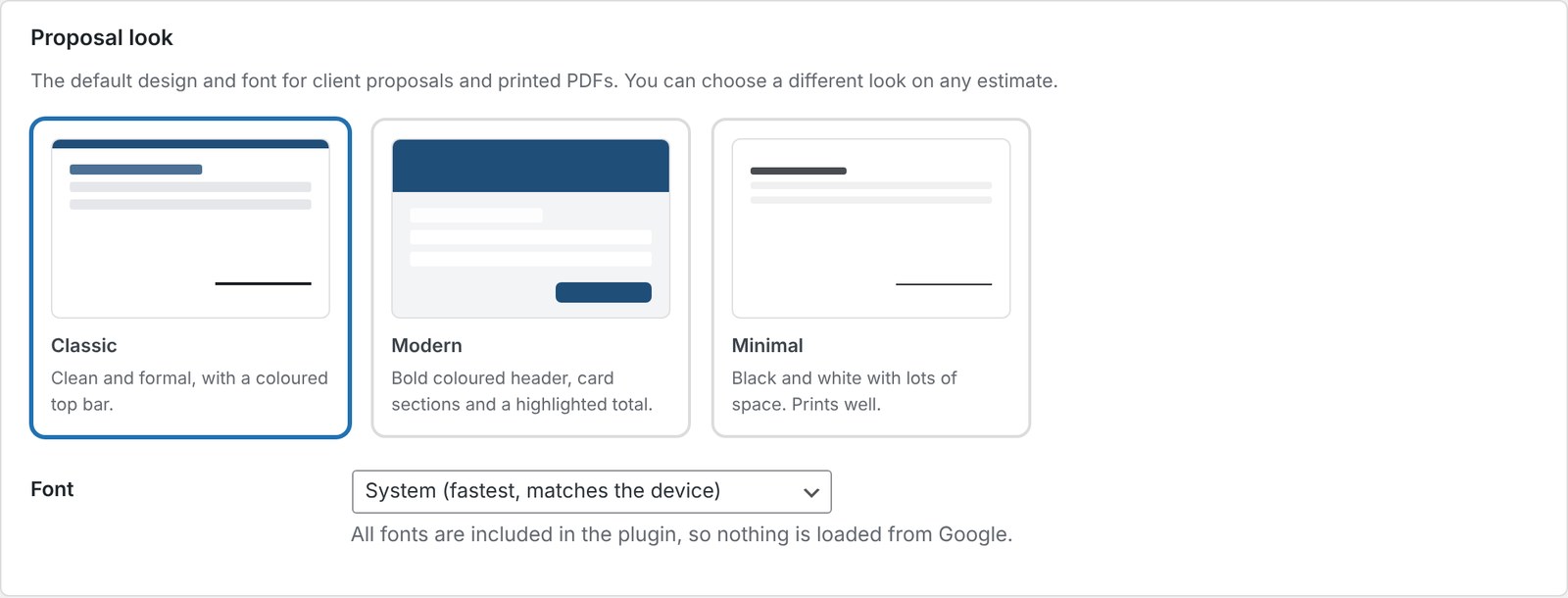
Choose the default in Settings → General → Proposal look:
| Classic | Clean and formal, with a coloured top bar. |
|---|---|
| Modern | Bold header in your brand colour, client and project details in cards, section titles with a colour bar and a highlighted total. Your logo sits on a white tile so dark logos stay visible. |
| Minimal | Black and white with plenty of space. Your brand colour is only used for links. Prints very well. |
Fonts: System (fastest), Modern (Manrope), Clean (Source Sans), Technical (IBM Plex Sans), Construction (Barlow Condensed + Barlow) and Formal (Newsreader + Source Sans). All fonts are included in the plugin, so nothing is loaded from Google.
To use a different look for one estimate, choose it under Proposal look at the top of the estimate editor. Changing the look of a proposal you've already sent doesn't create a new version.
Cost library and CSV import
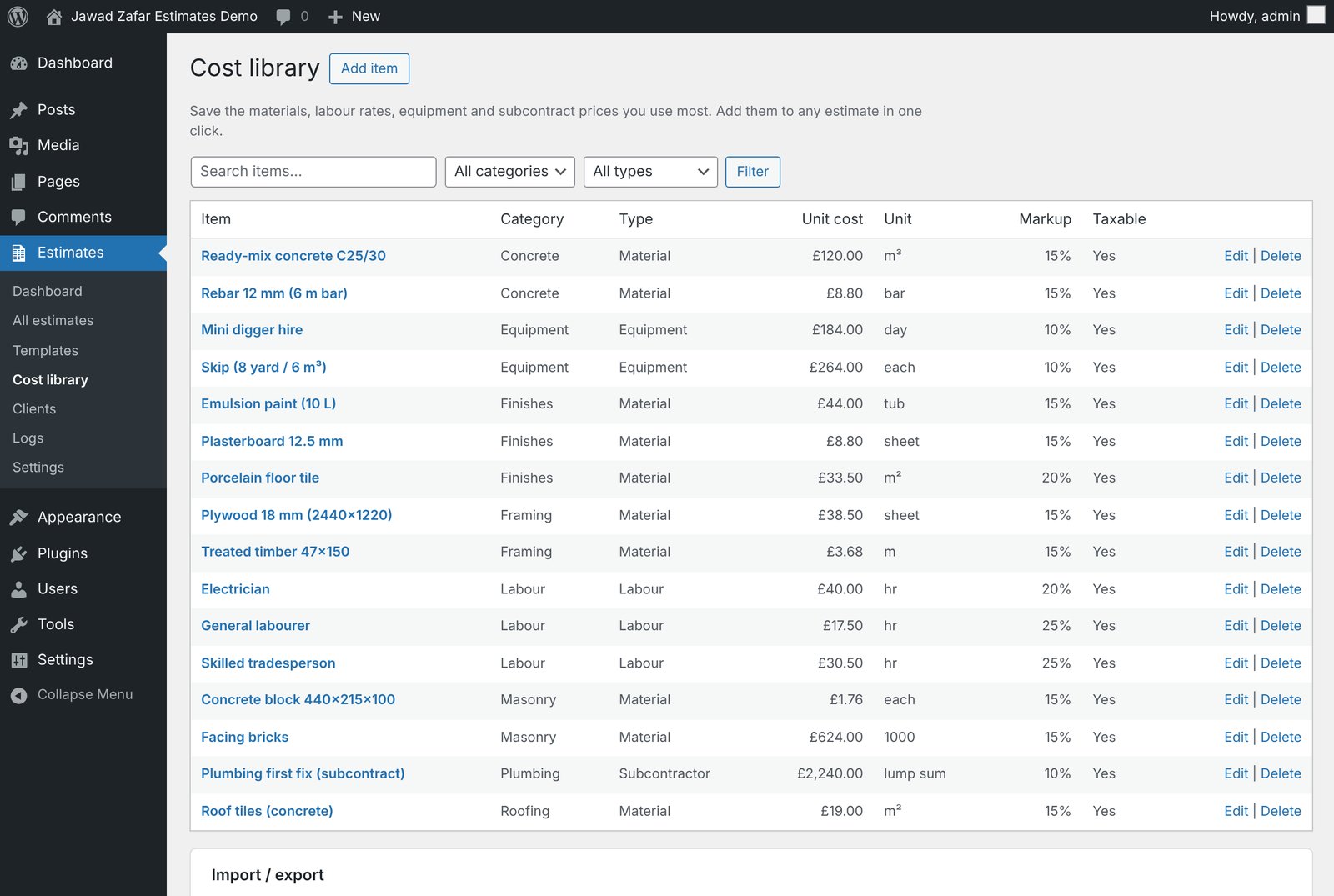
Estimates → Cost library stores the materials, labour, equipment and subcontract prices you use most. Each item has a name, category, type, unit, unit cost, markup %, whether it's taxable, a supplier and notes. Add items one by one, or import a spreadsheet.
CSV import
Use these columns. Only name is required.
name,category,type,unit,unit_cost,markup_pct,taxable,supplier,notes
Ready-mix concrete C25/30,Concrete,material,m³,125,15,1,Local Readymix,
General labourer,Labour,labour,day,160,25,1,,
type is one of material, labour, equipment, subcontract, other. Rows with the same name and category update the existing item. Export CSV downloads your library, which is handy as a backup.
Clients
Estimates → Clients holds name, company, email, phone, address and notes. A client with estimates can't be deleted, so your history stays complete.
Creating an estimate
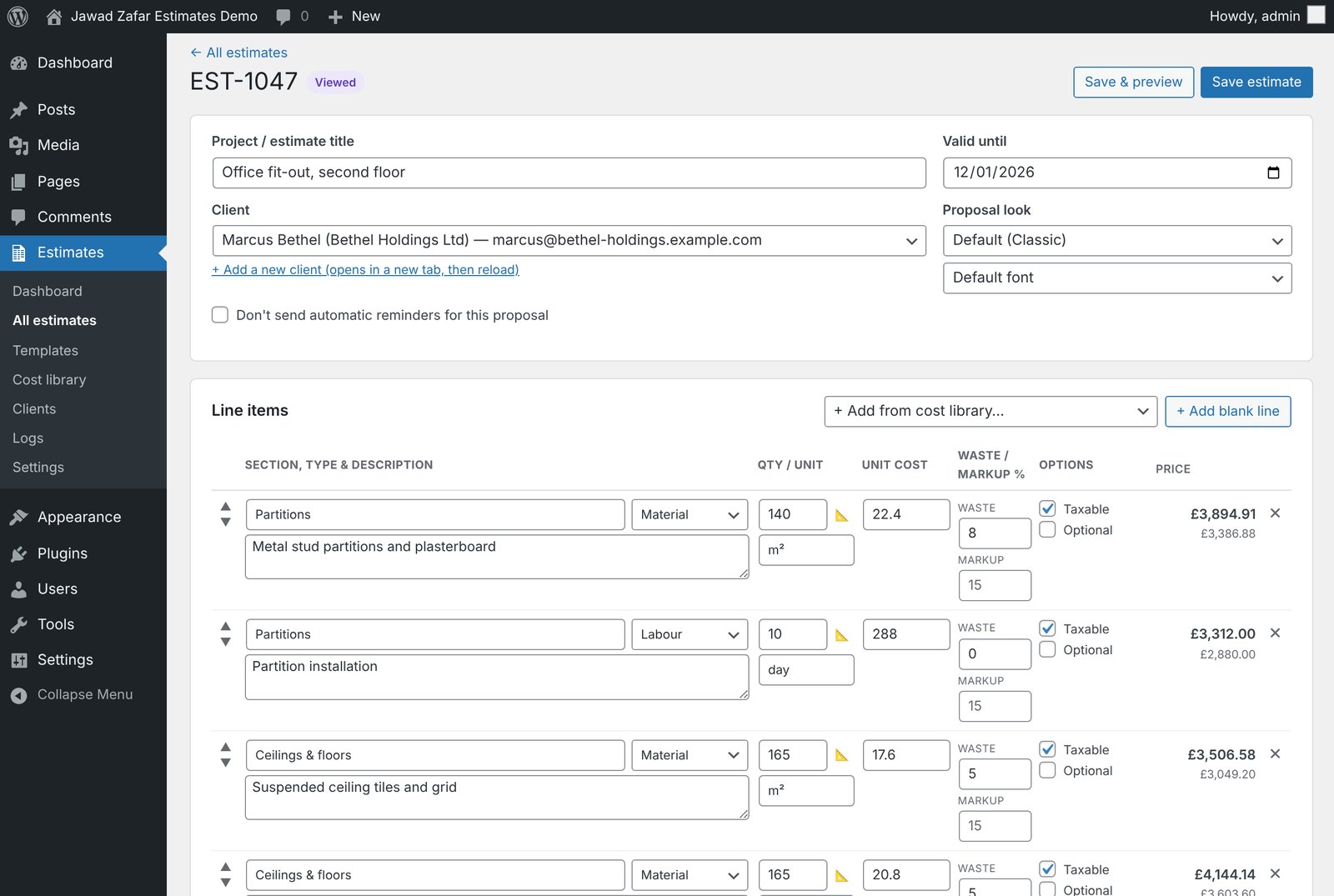
- Click Estimates → New estimate.
- Enter the project title, choose the client and check the "valid until" date. Optionally choose a different Proposal look.
- Add lines with Add from cost library or Add blank line. Each line has a section (for example "Groundworks"), type, description, quantity, unit, unit cost, waste % and markup %.
- Tick Optional on a line to turn it into an upgrade your client can choose.
- Use the quantity calculator (the ruler icon) to work out area, perimeter or concrete volume.
- Set overhead, contingency, duty, freight, fees, discount, tax and deposit, and edit the payment schedule if needed. Totals update as you type.
- Write the scope of work and terms, then click Save.
The Internal box shows direct cost, markup, gross profit and margin. Your client never sees these.
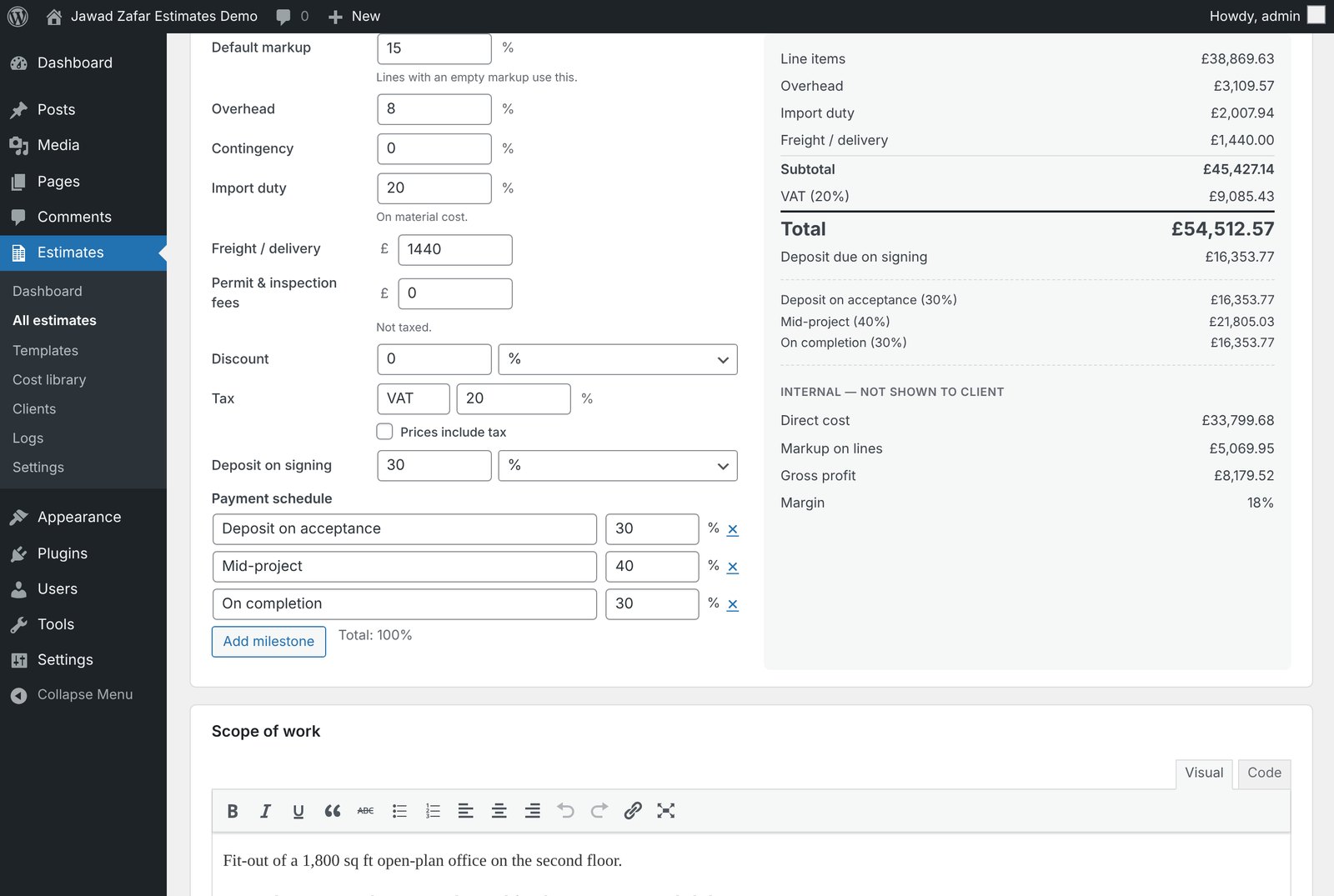
How pricing is calculated
- Line cost = quantity × unit cost × (1 + waste %).
- Line price = line cost × (1 + markup %). Lines without their own markup use the default markup.
- Overhead and contingency are a % of the line prices. In Settings you choose whether they're shown separately or spread into the line prices.
- Import duty is a % of material cost. Freight and fees are fixed amounts. Fees aren't taxed.
- Discount is a % or a fixed amount.
- Tax is added on top, or, with "Prices include tax", shown as "Includes VAT (20%)" under the total.
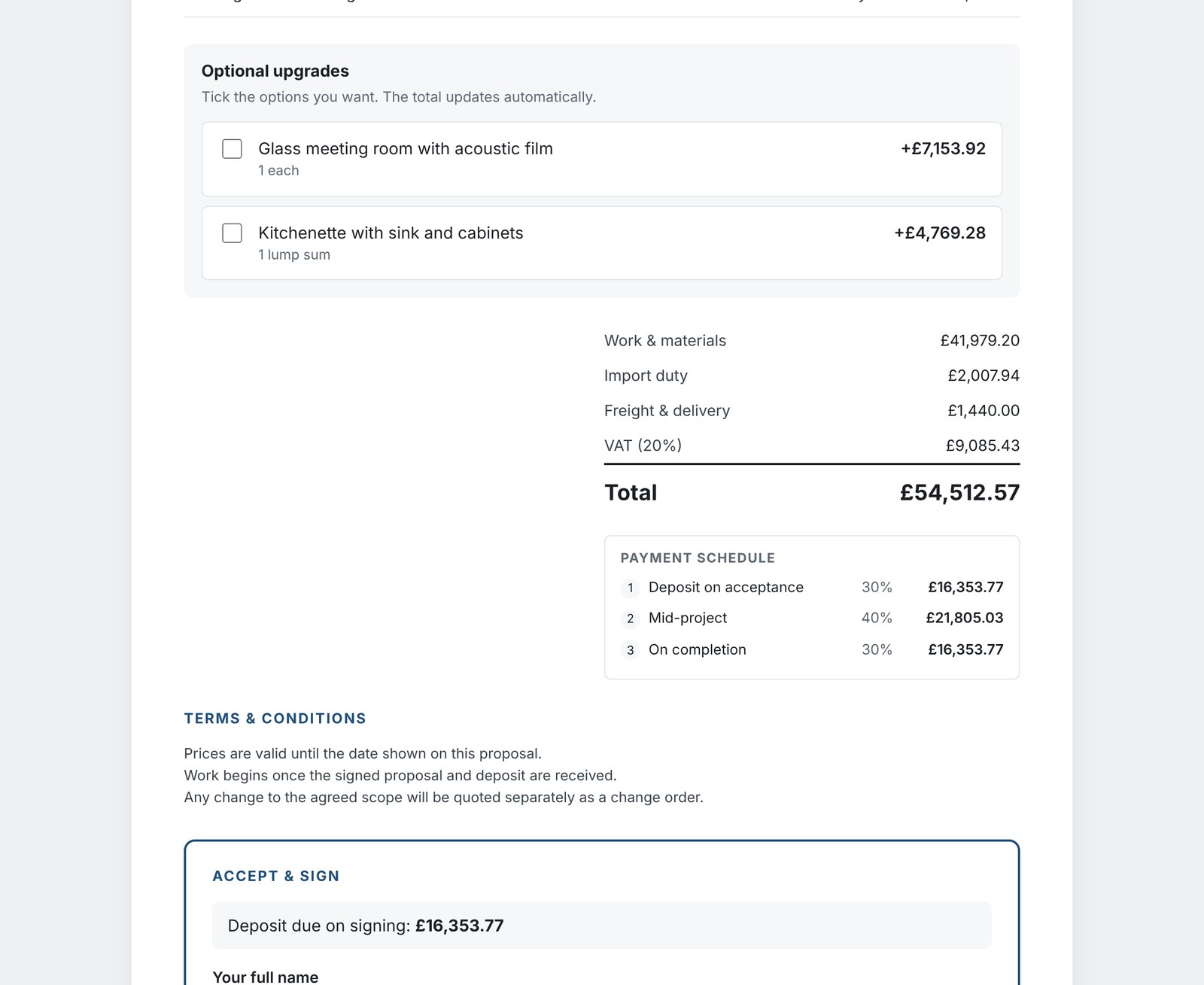
- Deposit is a % or a fixed amount. The payment schedule splits the total into stages, for example 30% on acceptance, 40% mid-project and 30% on completion.
Estimate templates
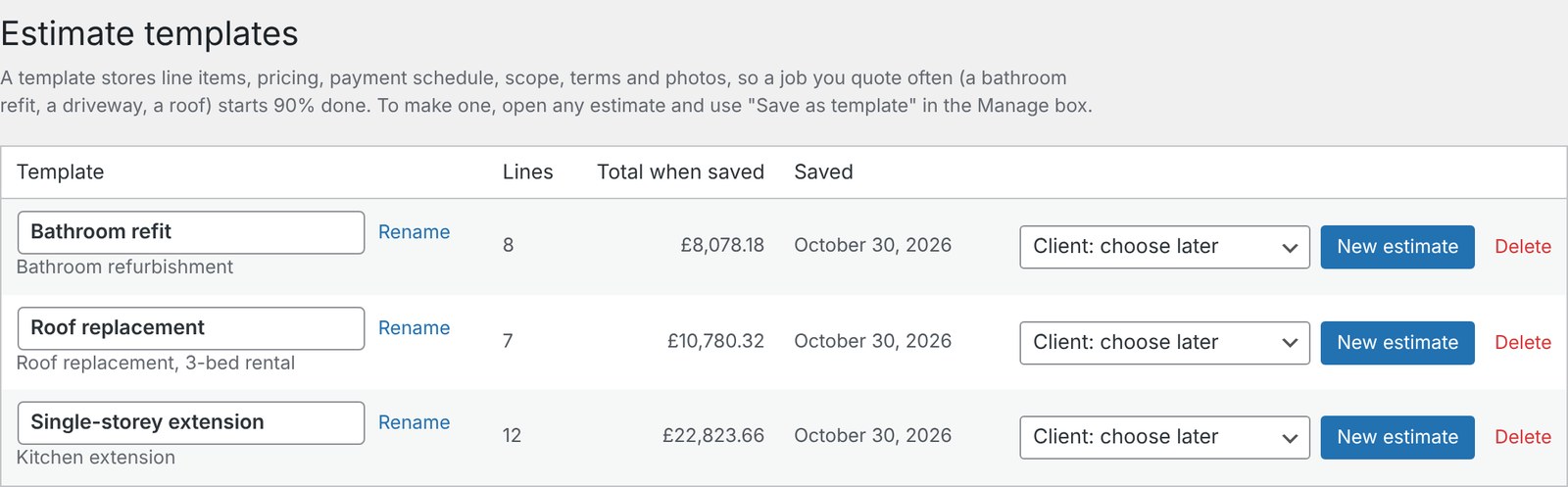
If you quote the same kind of job often (a bathroom refit, a driveway, a roof), save it once as a template and every new quote starts nearly finished.
- Open an estimate you're happy with and save it.
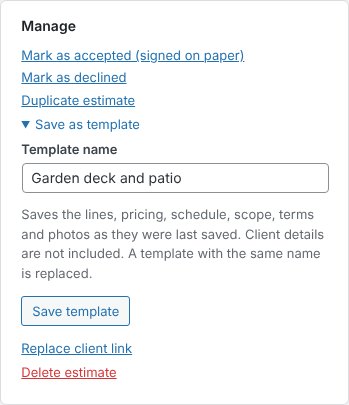
- In the Manage box, click Save as template, give it a name and click Save template. The lines, pricing, payment schedule, scope, terms, look and photos are saved. Client details are not.
- To use it, choose it in New from template… next to the New estimate button and click Create, or go to Estimates → Templates, pick a client and click New estimate.
Saving again with the same name replaces the template. Rename or delete templates on the Templates screen. Estimates made from a template are not affected when it changes.
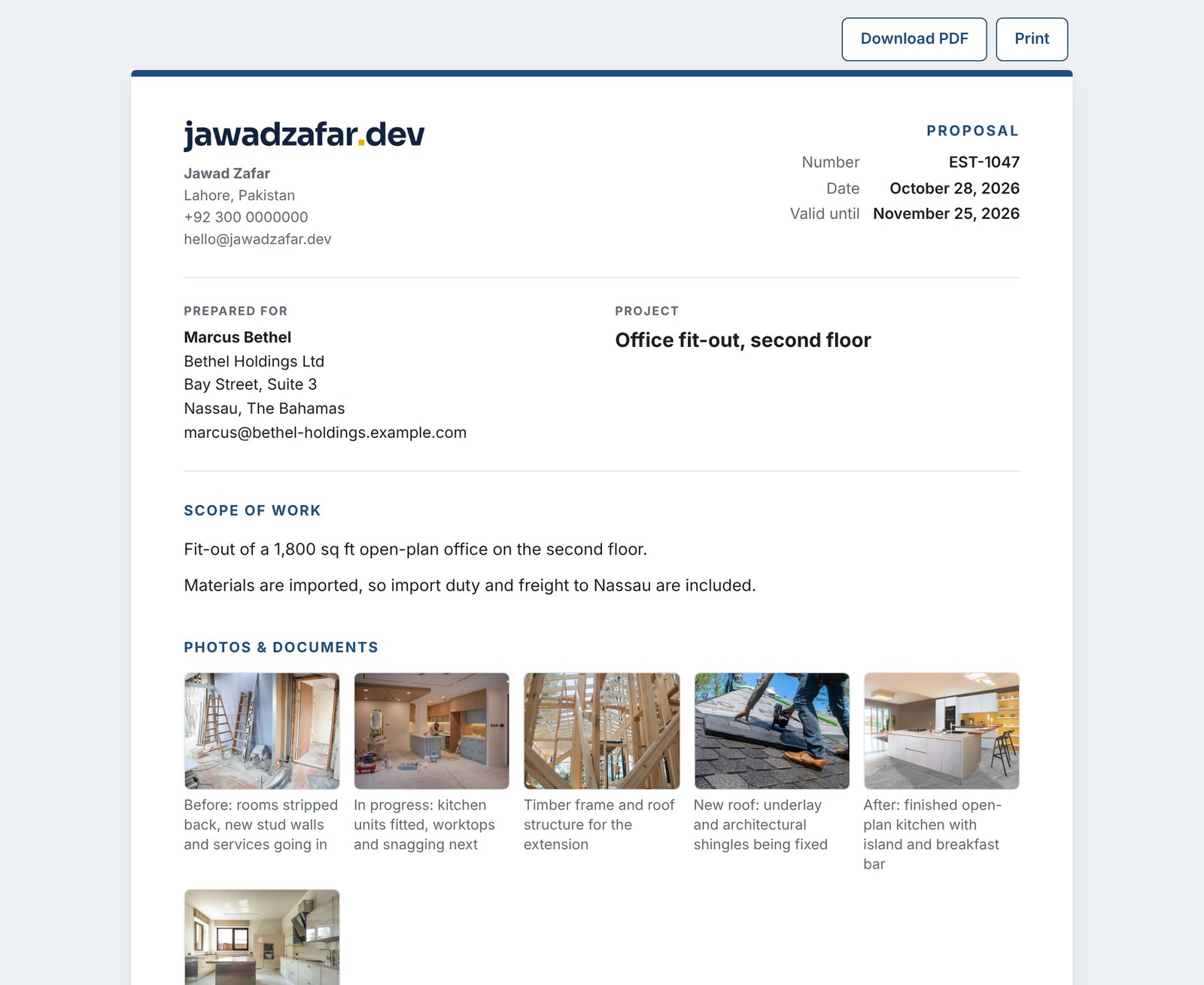
Photos and documents
Show your client what you saw on site, or add drawings, plans and product sheets.
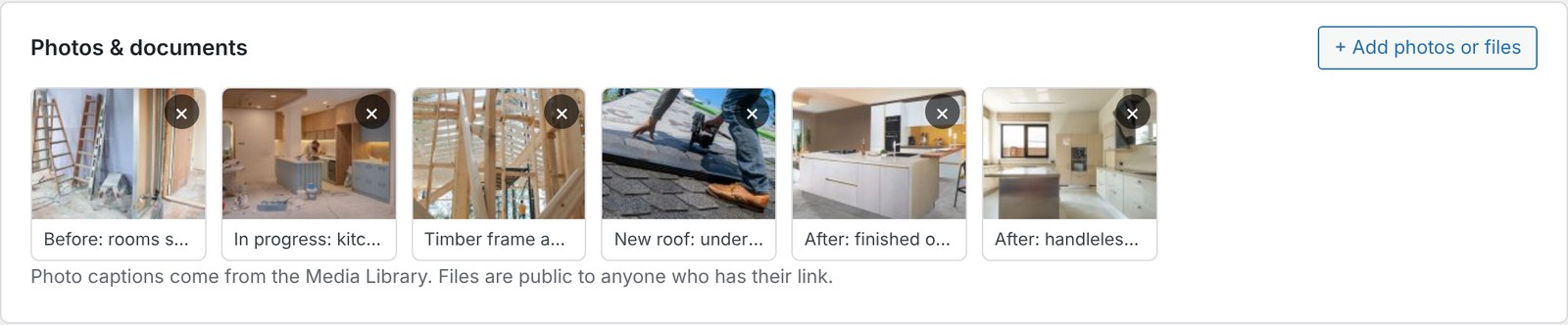
- In the estimate editor, find Photos & documents under the scope of work and click + Add photos or files.
- Upload new files or pick them from the Media Library tab (hold Ctrl or Cmd to pick several), then click Add to proposal.
- Drag to reorder, click × to remove, then save the estimate.
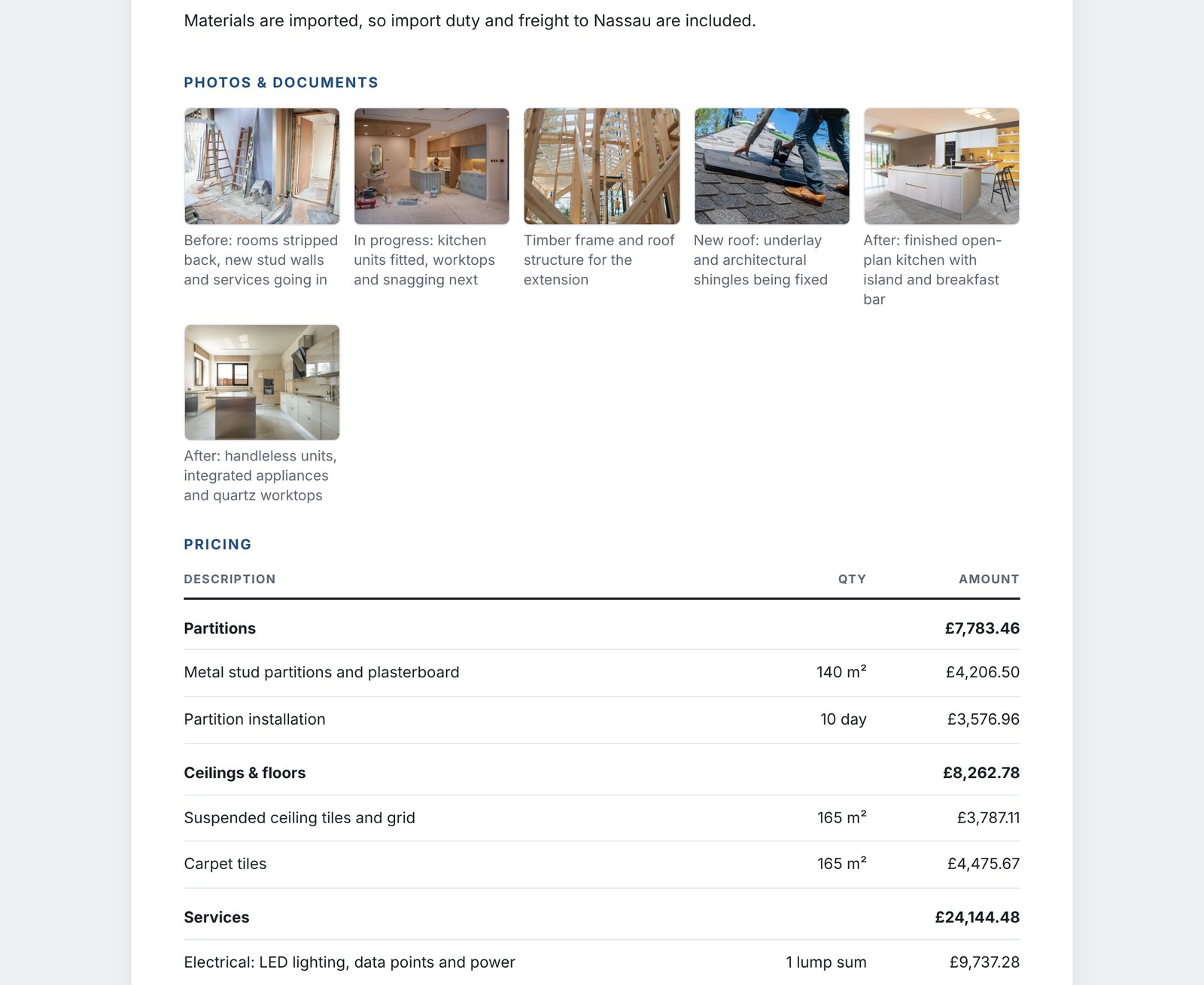
Photos appear as a gallery on the proposal (with their Media Library caption) and in the PDF. Other files appear as a download list. Adding or removing photos doesn't create a new version. Media Library files are public to anyone with their address, so don't attach anything confidential.
Sending a proposal
- Email proposal: in the editor's Send to client box, check the message and click Email proposal. The client receives an email with a "Review and sign the proposal" button.
- Share the link yourself: copy the Client link and send it by WhatsApp or any other channel, then click Mark as sent.
- Preview shows exactly what the client sees, without marking it as viewed.
- Download PDF gives you the PDF copy (see PDF copies). Print opens a print-ready page.
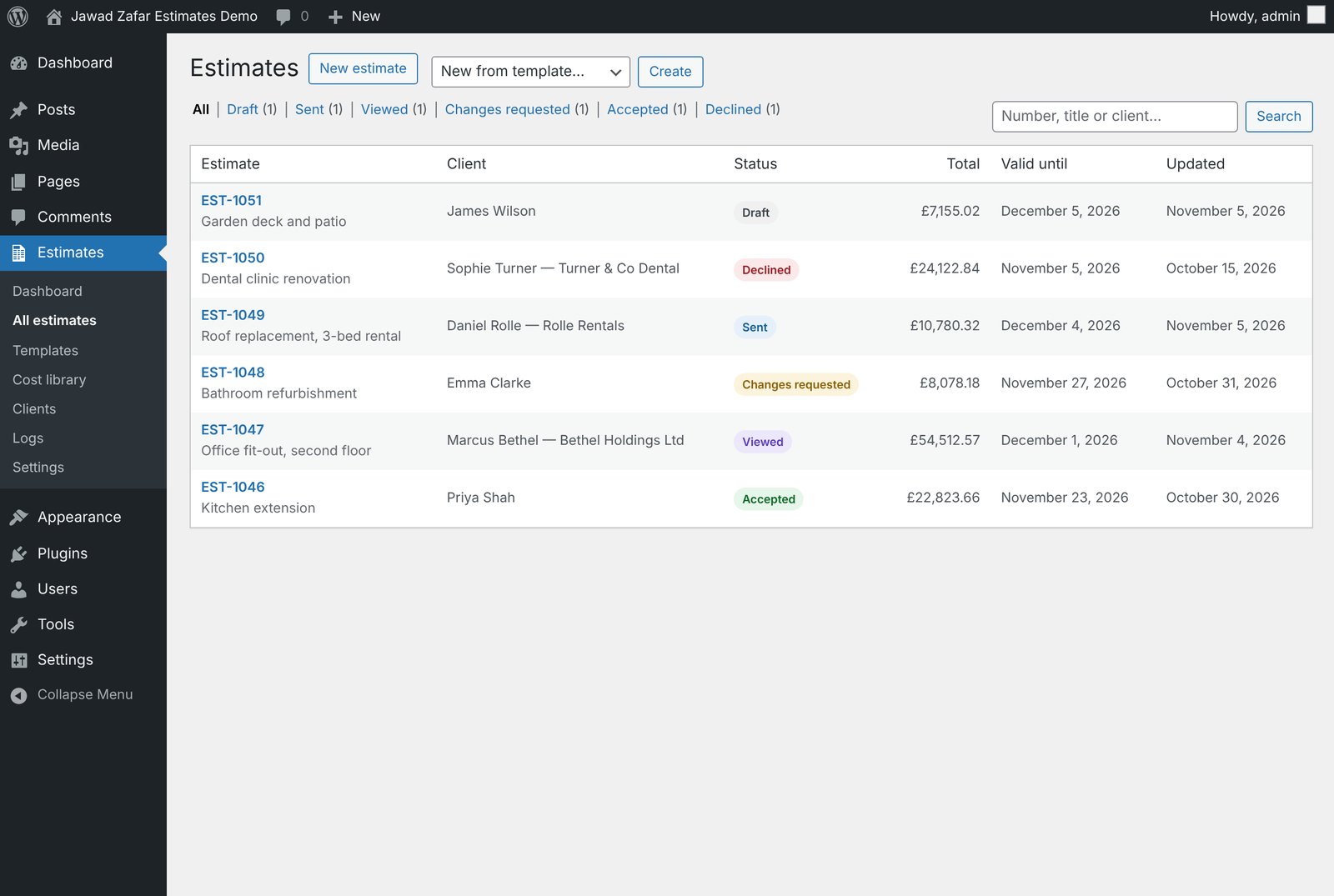
Statuses: Draft → Sent → Viewed → Accepted, Declined or Changes requested. You're emailed at each step if notifications are on.
What your client sees
- They open the private link. No account or password is needed.
- They read the scope, pricing and terms, and tick any optional upgrades. The total updates straight away.
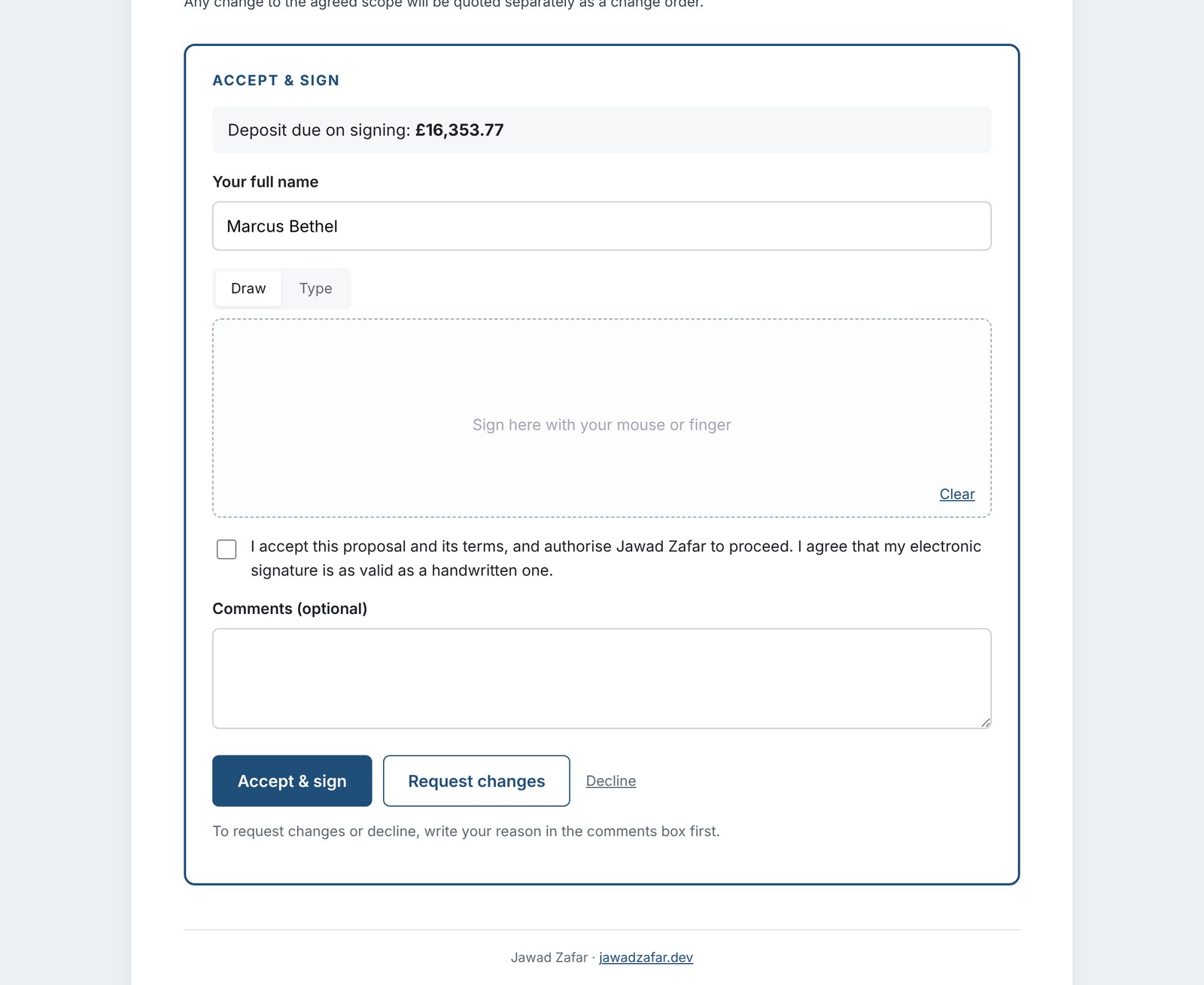
- They type their name, sign with a finger or mouse (or type a signature), tick the agreement and click Accept & sign. Name, date, time and IP address are recorded.
- Or they click Request changes or Decline, with a comment.
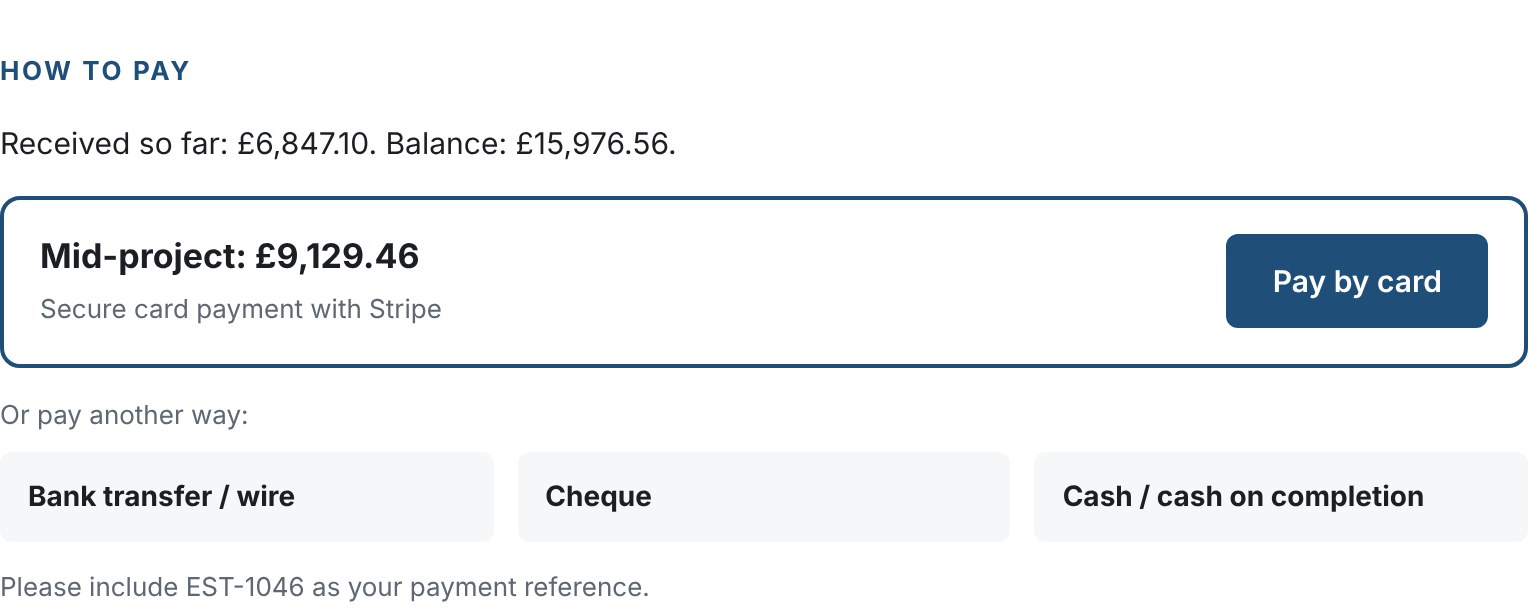
- After signing, they get a copy by email and see how to pay, including the Pay by card button if Stripe is set up.
Automatic follow-ups
A polite reminder wins jobs that would otherwise go quiet. Turn reminders on in Settings → Follow-ups & PDF.
| Not opened | Sent if the client hasn't opened the proposal a set number of days after you sent it (default 3). |
|---|---|
| Expiring soon | Sent a set number of days before an unsigned proposal's "valid until" date (default 3). |
- Each reminder goes out once per proposal version, only while it's Sent or Viewed. A new version can get new reminders.
- Edit the subject and message for each. The same placeholders as the proposal email work, and the
{link}line becomes a "Review and sign" button. - To skip reminders for one client, tick Don't send automatic reminders for this proposal at the top of its editor.
- The Client link box in the editor shows when the next reminder is due. Sent reminders appear in the activity history and the email log.
wp-cron.php every 15 minutes from a real cron job.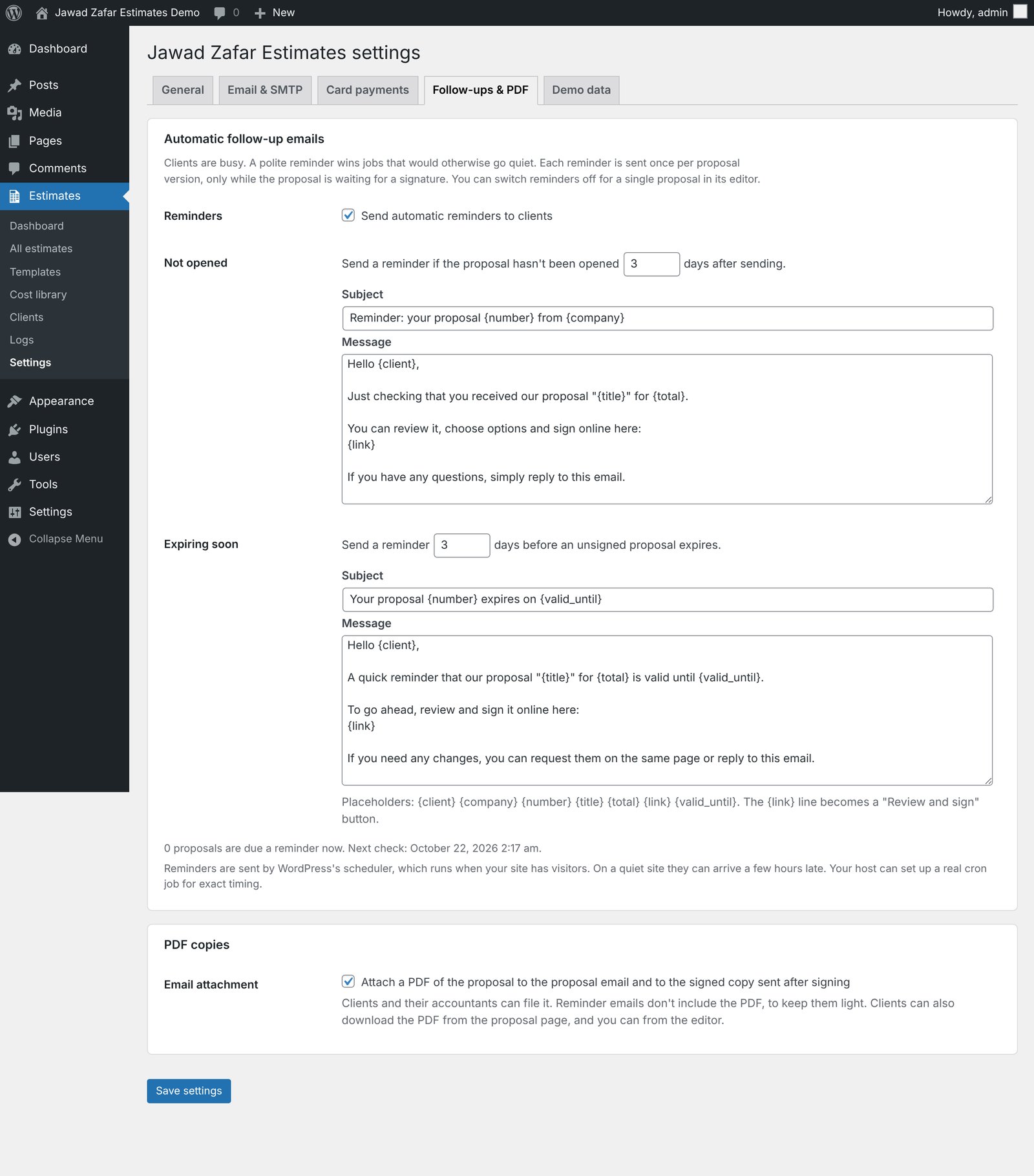
PDF copies
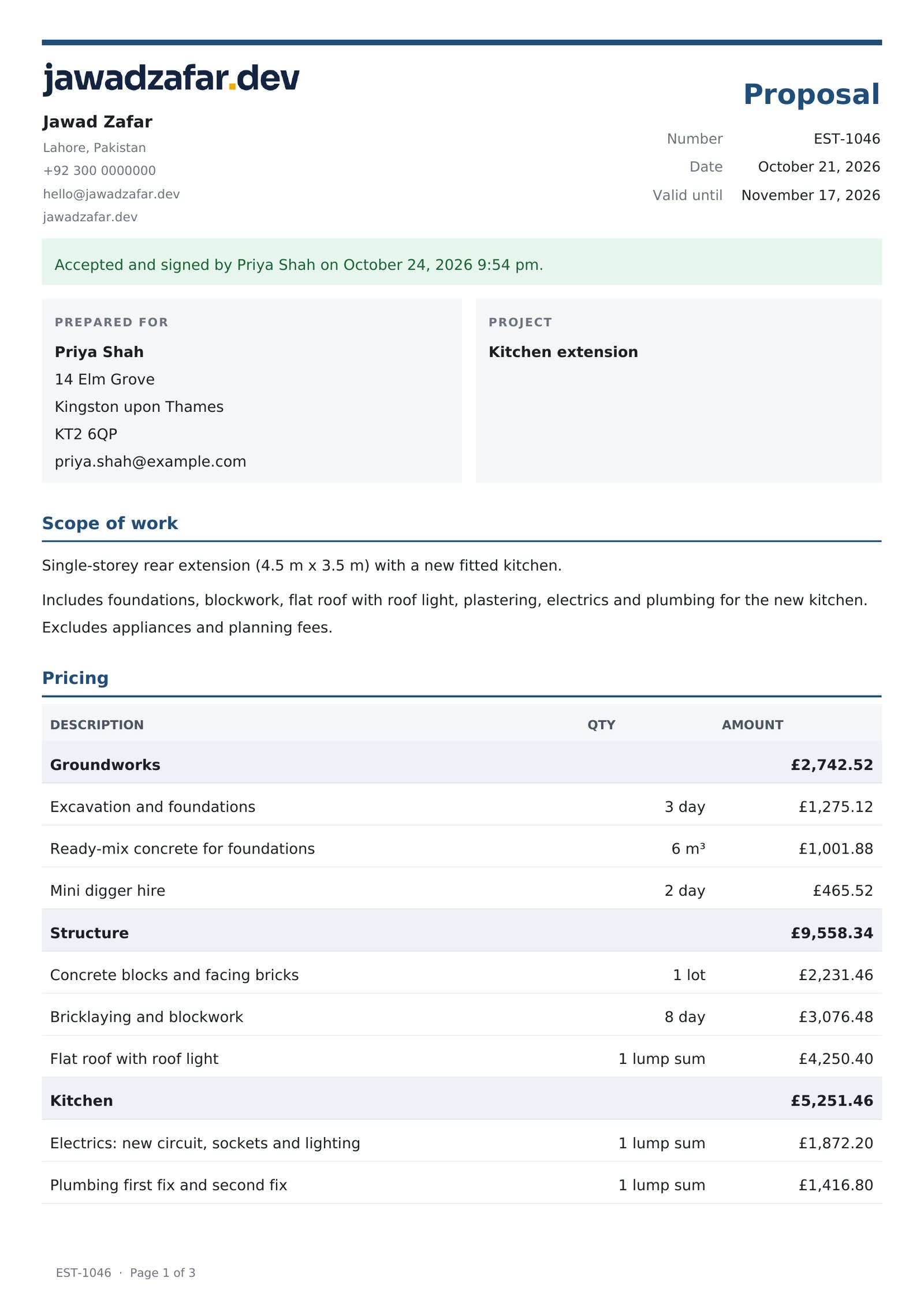
Every proposal has a PDF version with your logo, client details, scope, pricing, options, totals, payment schedule, photos and terms. Once signed, it also shows the signature, date and IP address.
- Email attachment: with Settings → Follow-ups & PDF → Email attachment on (default), the PDF is attached to the proposal email and to the signed copy the client receives after signing. Reminder emails don't include it.
- You: click Download PDF in the editor's Client link box.
- Your client: clicks Download PDF at the top of the proposal page.
Paper size is A4, or US Letter when you use imperial units (change it with the estprop_pdf_paper filter). PDFs need the PHP dom and mbstring extensions, which almost every host has. If they're missing, the settings tab tells you.
Payments
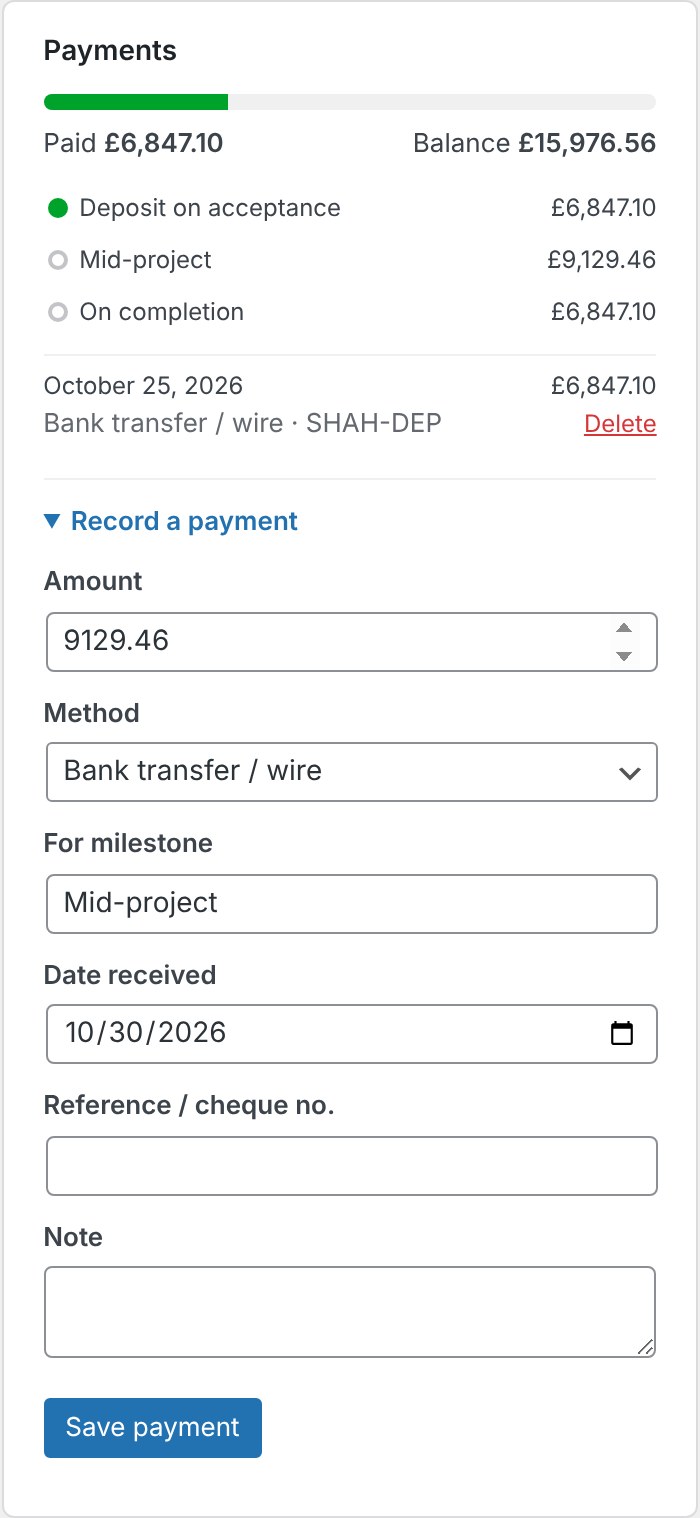
Open an accepted estimate. The Payments box shows what's paid and what's due at each stage. Record bank transfers, cheques and cash with Record a payment. Card payments made through Stripe are recorded automatically.
Card payments with Stripe
After signing, your client clicks Pay by card and pays on a secure page hosted by Stripe. Card details never touch your site. When they come back, the payment appears on the estimate and you get an email.
Set up
- Create or log in to your account at dashboard.stripe.com.
- Go to Developers → API keys. Copy the secret key:
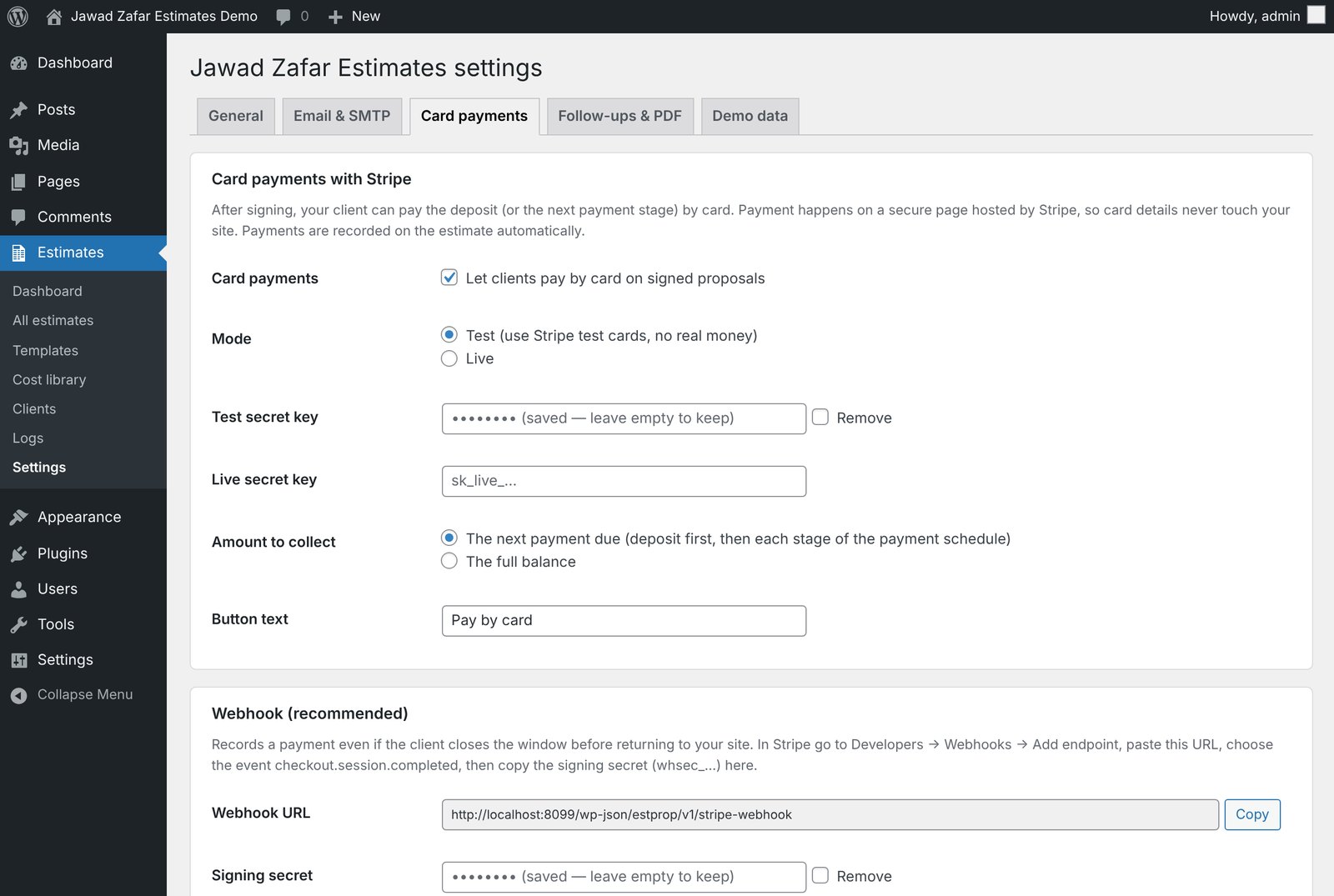
sk_test_…for test mode,sk_live_…for live mode. - In WordPress go to Estimates → Settings → Card payments. Tick Let clients pay by card, choose Test, paste the test secret key and save.
- Webhook (recommended): in Stripe go to Developers → Webhooks → Add endpoint. Paste the Webhook URL shown in the plugin, choose the event
checkout.session.completed, then copy the signing secret (whsec_…) into the plugin. The webhook records the payment even if your client closes the window before returning to your site. - Sign a test proposal yourself and pay with Stripe's test card
4242 4242 4242 4242, any future expiry date and any CVC. - When it works, add your live key, switch to Live and add a live-mode webhook in the same way.
What amount is charged?
By default: the next payment due, which is the deposit first, then each stage of the payment schedule. The button shows the stage name and amount, for example "On completion: £6,847.10". You can choose The full balance instead.
Good to know
- Stripe charges its own fees per payment.
- Your currency must be supported by Stripe in your country. See stripe.com/global.
- Each Stripe payment is recorded once, even if the client reloads the page and the webhook also arrives.
- Keys are stored encrypted. You can also set them in
wp-config.php; see For developers. - Turn on "Email customers about successful payments" in your Stripe settings to send clients a receipt.
Email and SMTP
Proposal emails are sent as HTML with a plain-text version, a "Review and sign" button and your business details in the footer. To make sure they reach the inbox:
- In Settings → Email & SMTP, set a From email on your own domain, for example proposals@yourcompany.com, and make sure that mailbox exists.
- Turn on SMTP and pick your provider: Gmail / Google Workspace, Outlook / Microsoft 365, Zoho, Brevo, SendGrid, Mailgun, Amazon SES, Hostinger, your hosting email (cPanel) or Namecheap Private Email. Enter the username and password.
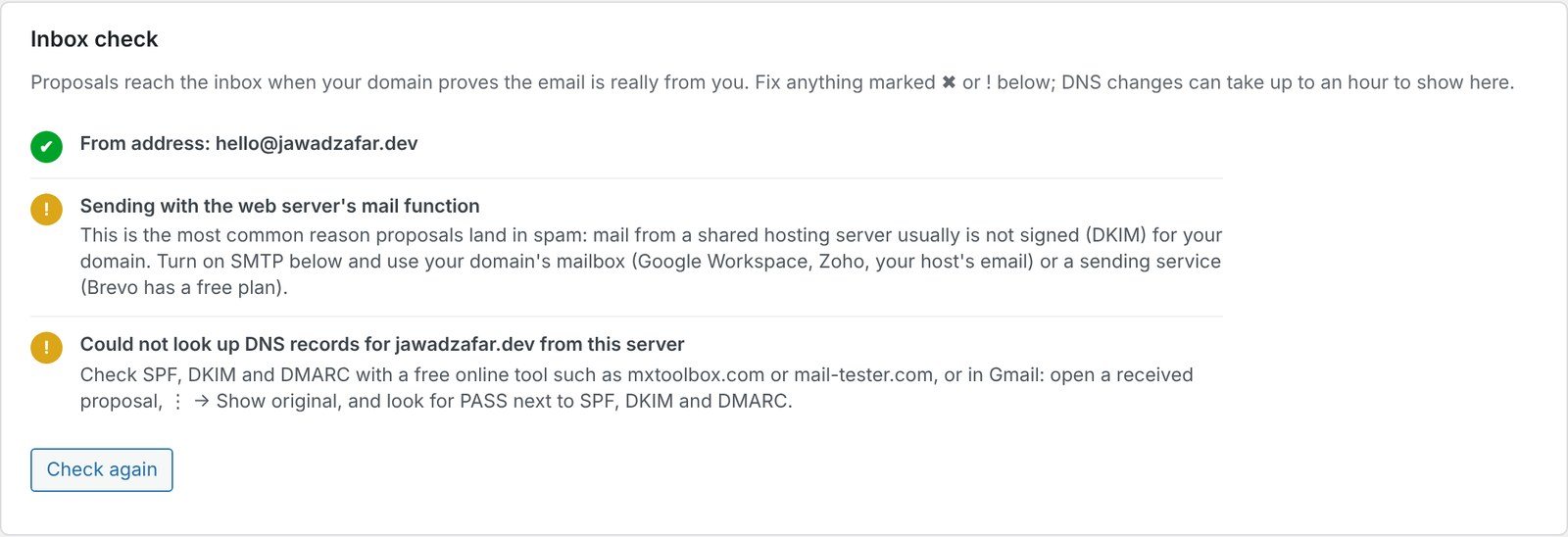
- Check the Inbox check. It looks at your From address, SMTP, SPF, DKIM and DMARC and tells you what to fix.
- Send a test email. If it fails, the plugin explains the error in plain language.
SMTP can apply to this plugin's emails only, so it never interferes with another SMTP plugin, or to all site emails.
Dashboard and logs
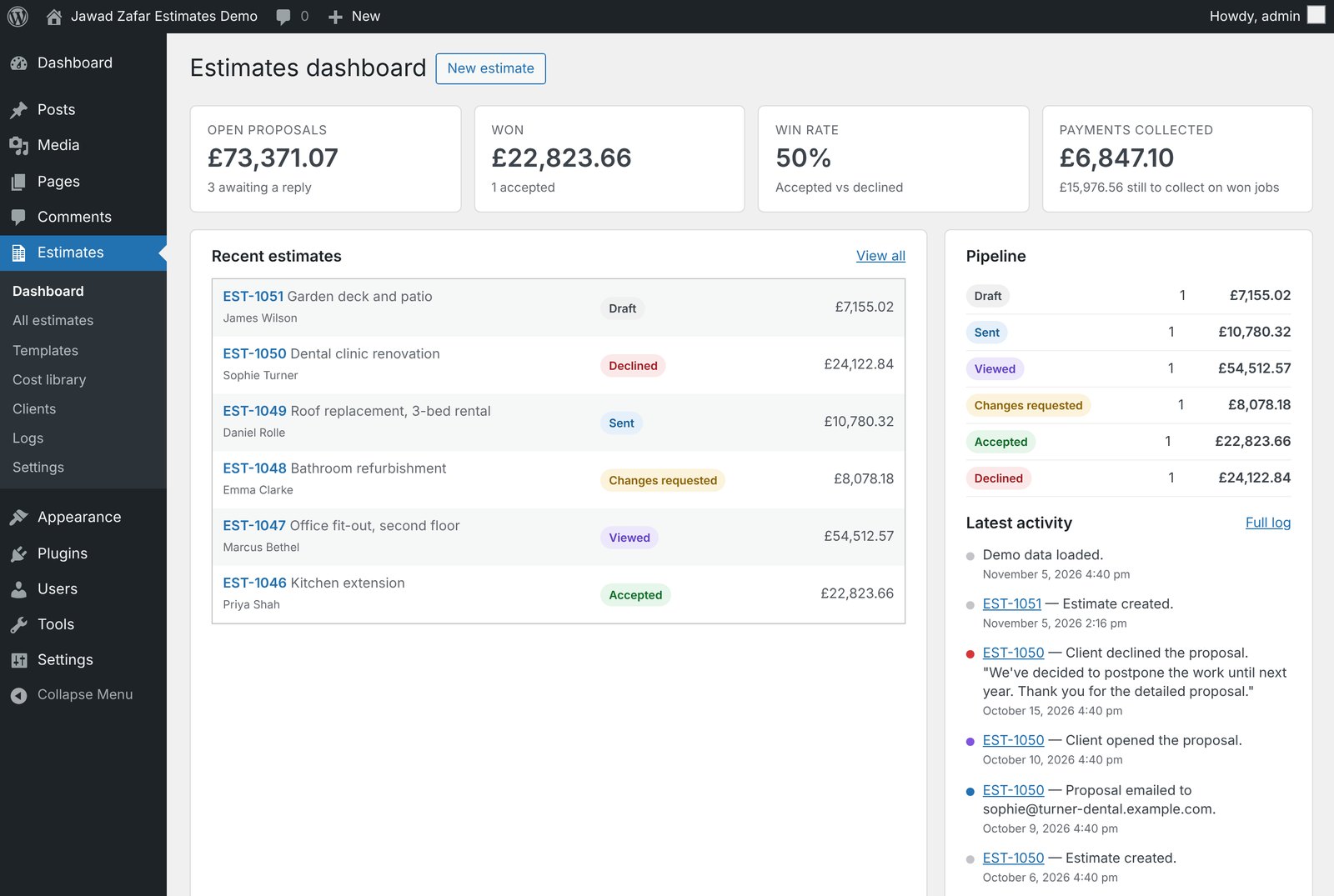
The Dashboard shows open proposals, won value, win rate, payments collected, the pipeline and the latest activity. Logs has two tabs: the activity log (everything that happened, with user, date and IP; filter and export to CSV) and the email log (every email with its status and errors, with one-click resend).
Demo data
Settings → Demo data → Load demo data adds 6 clients and 6 proposals, one at each stage (draft, sent, viewed, changes requested, accepted with a deposit paid, declined), plus sample cost items if your library is empty. Demo clients use example.com addresses, so no real emails are sent. Remove demo data deletes only what the demo added.
For developers
Keys and passwords in wp-config.php
define( 'ESTPROP_SMTP_HOST', 'smtp.example.com' );
define( 'ESTPROP_SMTP_PORT', 587 );
define( 'ESTPROP_SMTP_USER', 'proposals@example.com' );
define( 'ESTPROP_SMTP_PASSWORD', 'your-password' );
define( 'ESTPROP_STRIPE_TEST_SECRET', 'sk_test_...' );
define( 'ESTPROP_STRIPE_LIVE_SECRET', 'sk_live_...' );
define( 'ESTPROP_STRIPE_WEBHOOK_SECRET', 'whsec_...' );
Customising the proposal page
Copy templates/proposal.php from the plugin to your-theme/jawad-zafar-estimates/proposal.php and edit it there. After a plugin update, compare your copy with the new template.
Filters and actions
| Hook | Use |
|---|---|
estprop_proposal_template | Change the path of the proposal template. |
estprop_proposal_email_subject, estprop_proposal_email_body | Change the proposal email. |
estprop_email_html | Change the HTML email layout. |
estprop_payment_methods, estprop_payment_method_labels | Add or rename payment methods. |
estprop_country_presets | Add or change setup wizard countries. |
estprop_stripe_checkout_params | Change the Stripe Checkout session, for example to add a statement descriptor. |
estprop_pdf_template | Change the path of the PDF template. Or copy templates/pdf.php to your-theme/jawad-zafar-estimates/pdf.php. |
estprop_pdf_paper | PDF paper size: a4, letter or legal. |
estprop_followup_email_subject, estprop_followup_email_body | Change a reminder email. Extra argument: the type (unopened or expiring). |
estprop_block_zero_total_email | Return false to allow sending proposals with a total of 0. |
estprop_mail_set_sender | Return false to stop setting the Return-Path to the From address. |
estprop_dkim_selectors | DKIM selectors tried by the Inbox check. |
estprop_client_ip | Change how the client's IP is detected (for example behind a proxy). |
estprop_proposal_body_open (action) | Runs at the top of the client proposal page, for example to add a notice bar. Arguments: estimate, preview flag. |
estprop_status_changed (action) | Runs when an estimate's status changes. Arguments: estimate ID, new status. |
estprop_proposal_accepted (action) | Runs when a client signs. Argument: the estimate. |
estprop_followup_sent (action) | Runs after a reminder is sent. Arguments: estimate ID, type. |
estprop_payment_recorded (action) | Runs when any payment is recorded, including Stripe. Arguments: payment ID, estimate ID, payment data. |
FAQ and troubleshooting
A client link shows "Page not found"
Go to Settings → Permalinks and click Save Changes once.
Emails don't arrive or go to spam
Follow Email and SMTP. Most problems come from sending without SMTP, or from a From address on a free mailbox such as gmail.com. Check Logs → Emails for errors.
The "Pay by card" button doesn't appear
It only shows on accepted proposals with an amount due, when card payments are switched on and a secret key for the current mode is saved. It isn't shown in Preview.
A card payment didn't appear on the estimate
Set up the webhook (see Stripe set up, step 4). Check that the signing secret matches the mode (test or live) and that your site uses https.
Reminders aren't going out
Check that reminders are switched on, the proposal is Sent or Viewed (not Draft), it hasn't expired, the client has an email address, and the proposal isn't opted out. WP-Cron needs site visits, or a real cron job (see Automatic follow-ups). Some hosts disable WP-Cron with DISABLE_WP_CRON. In that case a real cron job is required.
The PDF isn't attached
Check Settings → Follow-ups & PDF. If a PDF can't be made, the email is still sent without it, and the reason is written to the estimate's activity history.
Can my client see my costs or markup?
No. Only selling prices are sent to the client's browser.
Is the e-signature legally binding?
The plugin records name, signature, date, time, IP address and agreement to the terms. Whether that's enough depends on the law where you work, so ask a local lawyer if unsure.
Uninstalling
Deactivating keeps all data. Deleting the plugin also keeps your data unless Delete all data when the plugin is deleted is ticked in Settings → General. Data is never deleted while the free version is still installed, because both versions share it.
Changelog
1.0.0
- First Pro release: Classic, Modern and Minimal designs; six font choices (five bundled fonts plus the system font); card payments with Stripe Checkout and webhook; automatic follow-up emails; PDF copies attached to emails and downloadable; estimate templates; photos and documents on proposals; shares data with the free version.
- Cost library with CSV import and export, setup wizard with 16 countries, estimate editor with live totals, optional upgrades, automatic versions, e-signature, deposits and payment schedules, offline payments, HTML emails with SMTP and Inbox check, activity and email logs, demo data.
Support and credits
Support is included as described on the CodeCanyon item page. Please contact us through the Support tab on CodeCanyon or at hello@jawadzafar.dev, and include your WordPress and PHP versions, what you expected and what happened, and screenshots if possible.
Credits: PDFs are made with Dompdf (LGPL 2.1), php-font-lib (LGPL 2.1), php-svg-lib (LGPL 3.0), html5-php (MIT) and PHP-CSS-Parser (MIT), bundled in vendor/ with their licences, and the DejaVu Sans font. Fonts Manrope, Source Sans 3, IBM Plex Sans, Barlow, Barlow Condensed and Newsreader under the SIL Open Font License 1.1 (see assets/fonts/LICENSE.txt). Payments by Stripe. Stripe is a trademark of Stripe, Inc.
Licence: the PHP code is licensed under the GNU General Public License v2 or later. Other assets (CSS, JavaScript, images) are licensed under your Envato Market licence.